How to Import Recipes from Any Website | Link, Screenshot & Scan
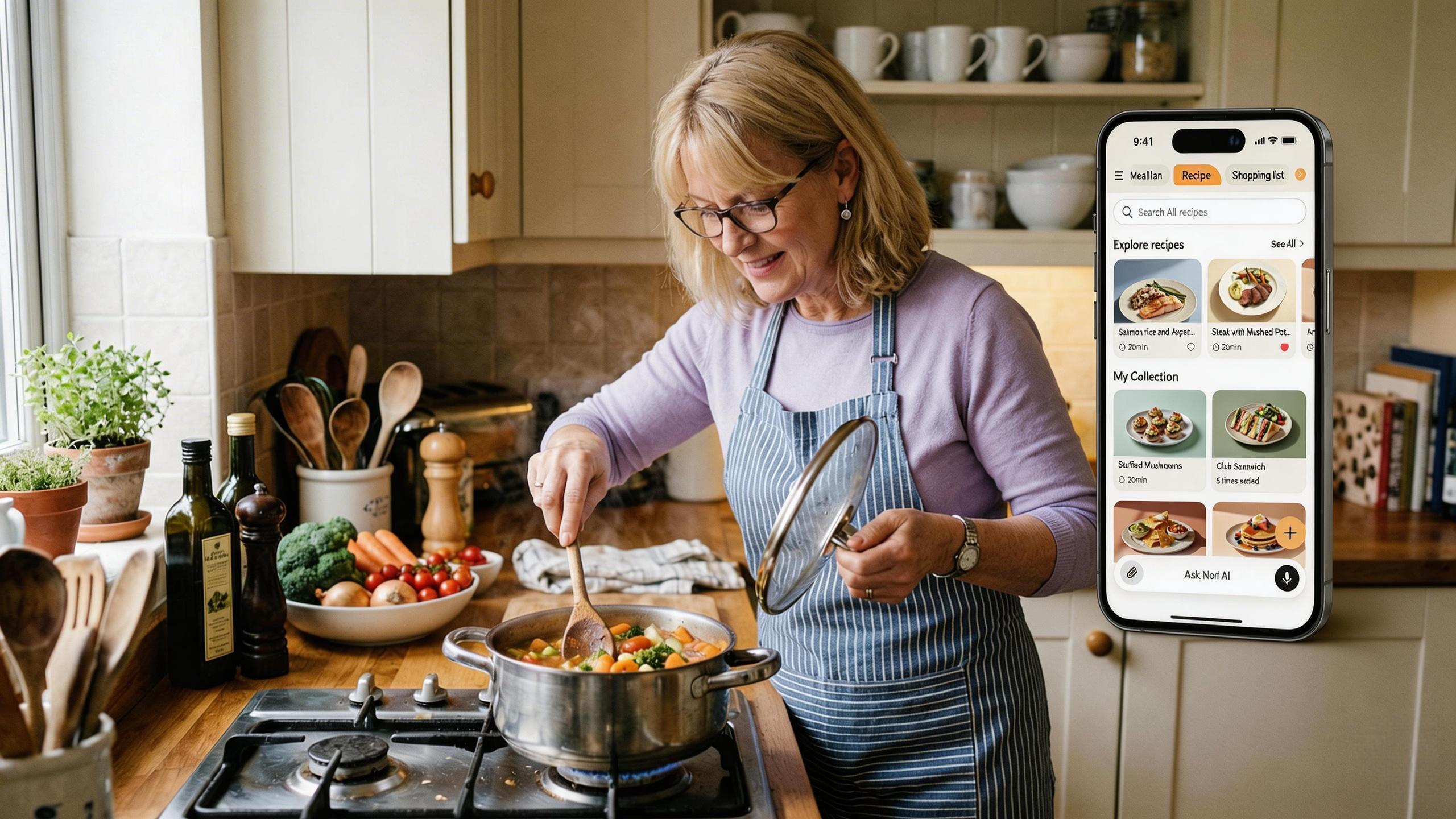
Recipes live everywhere: TikTok, Pinterest, food blogs, grandma's cookbook. How do you import recipes from any website—or any source—into one place? This guide covers link, screenshot, and scan methods so you never lose a recipe again. For app comparisons, see best recipe manager app; for meal planning, see best meal planning app for families.
Key Takeaways
- Paste link → URL → app extracts recipe (ingredients, instructions)
- Screenshot → Upload image → OCR + AI extract
- Scan → Photo of printed/handwritten page → extract
- Nori supports all three; Paprika and Recipe Keeper focus on web import
Why Recipe Import Matters
Recipes are scattered: browser tabs, screenshots, saved posts, cookbooks. A recipe manager that imports from any source keeps everything in one place. When you meal plan, you have your full library at your fingertips.
Different sources need different methods. Food blogs and recipe sites work best with link paste. TikTok, Instagram, and Pinterest often require screenshots. Grandma's cookbook needs a scan. The best apps support multiple methods—so you're covered no matter where the recipe lives.
The "lost recipe" problem: You saw a great pasta dish on TikTok. You screenshotted it. Six months later, you want to make it—but where's the screenshot? Buried in your camera roll. A recipe manager with screenshot import lets you upload, extract, and save. Searchable. Tagged. In your meal planning rotation.
Building a library: Over time, your imported recipes become your go-to collection. Weeknight favorites, holiday dishes, kid-approved meals. When you meal plan, you're choosing from recipes you've already vetted—no more endless web searches. For meal planning integration, see best meal planning app for families.
Method 1: Paste a Link
How it works: Copy the URL of a recipe page, paste into the app. The app (or a browser extension) fetches the page and extracts the recipe.
Best for: Recipes from websites with structured data (most food blogs, recipe sites).
Apps: Nori, Paprika, Recipe Keeper, Copy Me That, AnyList.
Nori lets you paste a link and AI extracts ingredients and instructions. Works with most recipe sites.
Method 2: Screenshot or Image Upload
How it works: Take a screenshot of a recipe (e.g., from TikTok or Instagram) or upload an image. OCR + AI extract the text and structure it as a recipe.
Best for: Recipes from social media, PDFs, or images.
Apps: Nori, Recipe Keeper (OCR).
Nori supports screenshot upload—AI extracts the recipe from the image.
Method 3: Scan Printed or Handwritten
How it works: Take a photo of a printed recipe or handwritten card. OCR + AI extract and structure.
Best for: Grandma's cookbook, index cards, magazine clippings.
Apps: Nori, Recipe Keeper.
Nori supports scan import—digitize handwritten recipes.
Which Method for Which Source?
| Source | Best method |
|---|---|
| Food blog, recipe site | Paste link |
| TikTok, Instagram, Pinterest | Screenshot |
| Cookbook, handwritten | Scan |
| Forward (Nori supports email) |
After Import: Meal Planning and Allergy Tags
Once recipes are imported, tag them for allergies (nut-free, gluten-free) and add them to meal plans. Nori lets you filter by allergy and link recipes to meal planning—so your weekly plan and grocery list flow from your saved recipes. For allergy-specific planning, see AI meal planning for families with allergies.
Tips for Best Import Results
- Link: Use the recipe page URL, not the homepage. Most recipe sites have structured data that parsers can extract.
- Screenshot: Ensure the full recipe is visible—ingredients and instructions. Crop if needed.
- Scan: Lay the page flat, use good lighting. Handwritten recipes may need manual verification.
Common Recipe Sources and How to Import
| Source | Method | Notes |
|---|---|---|
| Food blog (e.g., Smitten Kitchen, Half Baked Harvest) | Paste link | Most have structured data; extract works well |
| TikTok, Instagram Reels | Screenshot | Capture the full recipe; may need to scroll or use multiple screenshots |
| Screenshot or link | Link often goes to original source; screenshot if pinned image only | |
| NYT Cooking, Epicurious | Paste link | Well-structured; extract is reliable |
| Grandma's index card | Scan | Photo the card; OCR + AI extract; verify handwritten text |
| Cookbook | Scan | Photo the page; ensure good lighting |
| Email forward | Forward to Nori | Nori can parse recipe from email body or attachment |
After Import: Organize and Tag
Once imported, tag recipes for allergies (nut-free, gluten-free), cuisines (Italian, Mexican), or occasions (weeknight, holiday). When meal planning, filter by these tags. Nori lets you build a library, tag recipes, and use them in AI meal planning—so your saved recipes become the foundation for your weekly plan. For allergy tagging, see AI meal planning for families with allergies.
Nori vs. Paprika vs. Recipe Keeper: Import Comparison
| Feature | Nori | Paprika | Recipe Keeper |
|---|---|---|---|
| Link import | Yes | Yes | Yes |
| Screenshot import | Yes | Yes | OCR |
| Scan import | Yes | Yes | Yes |
| Email forward | Yes | Yes | Yes |
| Meal planning | Yes | Yes | Yes |
| Allergy tags | Yes | Manual | Manual |
Nori is the only option that supports link, screenshot, scan, and email. If your recipes come from all over, Nori covers every source. Paprika excels at web import; Recipe Keeper adds OCR for images. Choose based on where your recipes live.
Batch Import: Building Your Library Fast
Have 20 bookmarked recipes? Import them in a batch. Paste each link; the app extracts. Or screenshot a batch from Pinterest—upload each image. Dedicate 30 minutes to importing your favorites. Your library will be ready for meal planning. For recipe manager comparisons, see best recipe manager app.
Getting Started: Import Your First 5 Recipes
- Choose your app — Nori for link + screenshot + scan. Paprika for web-only. Recipe Keeper for web + OCR.
- Gather sources — 5 recipes: 2 from blogs (links), 2 from TikTok/Instagram (screenshots), 1 from a cookbook (scan).
- Import — Paste links. Upload screenshots. Scan the cookbook page. Review extracted recipes. Fix any errors.
- Tag — Cuisine, occasion, dietary. "Quick weeknight." "Nut-free." "Holiday."
- Use in meal planning — Add to your weekly plan. Generate grocery list. You've built the foundation.
Pro tip: Start with recipes you already love. Your top 5 weeknight dinners. Import those first. They'll become the core of your meal planning. Add new discoveries over time.
When Import Fails: Troubleshooting
Link returns "could not extract" — The site may block scrapers or use unusual formatting. Try screenshotting the recipe and uploading the image. Or copy-paste the text manually if it's short.
Screenshot is blurry — Retake with better lighting. Ensure the full recipe (ingredients + instructions) is visible. Crop if needed.
Handwritten scan has errors — OCR struggles with handwriting. Review carefully. Fix quantities and ingredients. For critical recipes, type the key parts manually.
Recipe behind paywall — If you have access, paste the link. If not, screenshot what you can see. OCR extracts visible text. You may need to fill in missing parts.
After Import: Organize for Meal Planning
Once recipes are imported, tag them for allergies (nut-free, gluten-free), cuisines (Italian, Mexican), or occasions (weeknight, holiday). When meal planning, filter by these tags. Nori lets you build a library, tag recipes, and use them in AI meal planning—so your saved recipes become the foundation for your weekly plan. For allergy tagging, see AI meal planning for families with allergies.
Scaling recipes — Some apps (Nori, Paprika) support scaling—double or halve ingredients. Useful when cooking for a crowd or cutting a recipe down. Check the app after import. Scaling ensures you buy the right quantities.
Batch import — Have 20 bookmarked recipes? Import them in a batch. Paste each link; the app extracts. Or screenshot a batch from Pinterest—upload each image. Dedicate 30 minutes to importing your favorites. Your library will be ready for meal planning. For recipe manager comparisons, see best recipe manager app.
Quick Reference: Import Methods by Source
| Source | Method | Apps |
|---|---|---|
| Food blog (Smitten Kitchen, Half Baked Harvest) | Paste link | Nori, Paprika, Recipe Keeper |
| TikTok, Instagram Reels | Screenshot | Nori, Recipe Keeper |
| Screenshot or link | Nori, Recipe Keeper, Copy Me That | |
| NYT Cooking, Epicurious | Paste link | Nori, Paprika, Recipe Keeper |
| Grandma's index card | Scan | Nori, Recipe Keeper |
| Cookbook | Scan | Nori, Recipe Keeper |
| Forward | Nori |
Nori supports all methods. Paprika and Recipe Keeper focus on web import. Copy Me That adds a browser extension for one-click save. Choose based on where your recipes live. For meal planning, see best meal planning app for families.
Conclusion
Importing recipes from any website—or any source—is possible with link, screenshot, and scan. Nori supports all three. Try Nori free.
FAQ: How to Import Recipes from Any Website
Can I import from TikTok or Instagram? Yes. Take a screenshot of the recipe and upload it to Nori or Recipe Keeper. AI/OCR extracts the recipe. Nori supports screenshot upload natively.
Which app imports from the most sources? Nori supports link, screenshot, and scan. Paprika and Recipe Keeper focus on web import. Copy Me That adds browser extension for one-click web saves.
Do I need to type the recipe manually? No. Nori, Paprika, and Recipe Keeper extract ingredients and instructions from links, images, or scans. You may need to correct occasional errors.
Can I import from a cookbook? Yes. Take a photo of the page and scan it. Nori and Recipe Keeper support scan import. Handwritten recipes may need manual verification.
What if the extraction is wrong? Always review. AI and OCR can misread (e.g., "1 cup" vs. "1/2 cup"). Edit the recipe after import. Over time, you'll learn which sources extract well and which need more manual correction.
Can I import a recipe from a paywalled site? If you have access (subscription, free article), paste the link. The app fetches the page. If the recipe is behind a hard paywall, screenshot what you can see and upload—OCR will extract the visible text.
How do I organize imported recipes? Tag by cuisine (Italian, Mexican), occasion (weeknight, holiday), dietary (vegetarian, nut-free), or custom tags. Create folders or collections. When meal planning, filter by tag. Nori lets you build a searchable, filterable library—so finding "quick weeknight pasta" is one search away.
What about recipe scaling? Some apps (Nori, Paprika) support scaling—double or halve ingredients. Useful when cooking for a crowd or cutting a recipe down. Check the app after import.
Related Articles
- Best Recipe Manager App 2026
- Best Meal Planning App for Families 2026
- AI Meal Planning for Families: Complete Guide 2026
- Best Family Shopping List App 2026
Written by the Nori Team.