Best Photo to Calendar App 2026: Snap Flyers, Get Events
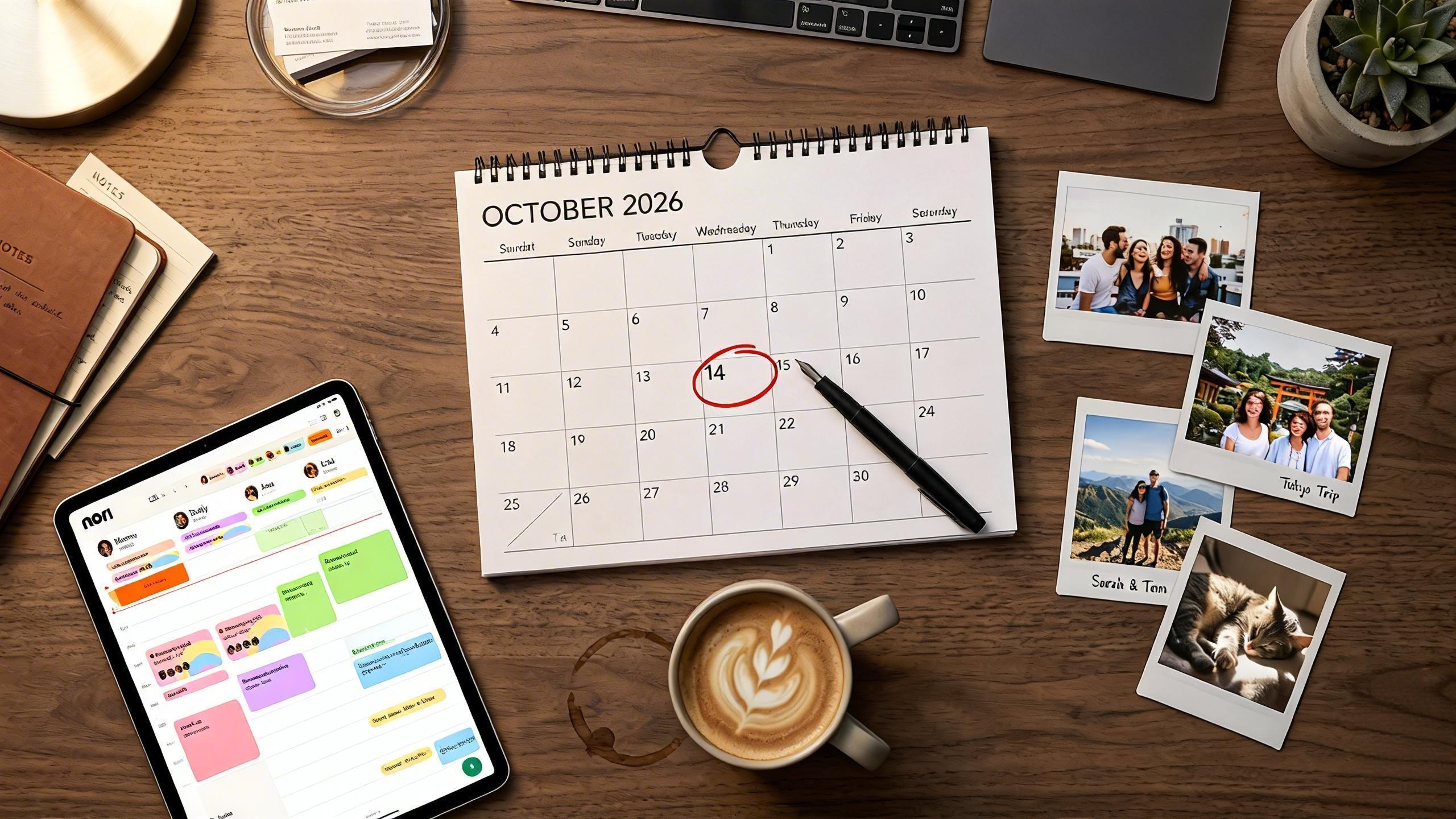
School flyers, sports schedules, and appointment cards pile up—and manually typing them into a calendar is tedious. The best photo to calendar app 2026 uses AI to extract events from photos and add them automatically. Here's how the top options compare. For step-by-step tips, see how to add school flyers to calendar; for sports parents, see family calendar for sports parents.
Key Takeaways
- Nori turns photos of flyers, schedules, and screenshots into calendar events—plus voice and email input
- Calendara and Photo2Calendar focus on photo-to-calendar extraction
- Look for: school flyer support, recurring event detection, and calendar sync
- Photo input saves 1–2 hours per week for families with busy kids
What Is Photo to Calendar?
Photo to calendar (or flyer to calendar) means: take a photo of a flyer, schedule, or screenshot, and the app uses AI/OCR to extract event details—date, time, location—and adds them to your calendar. No typing.
Why Photo Input Beats Manual Entry for School Flyers
School flyers arrive as paper handouts, PDFs in email, and screenshots from team apps. Typing each event—date, time, location, recurrence—takes 2–3 minutes. With 10–20 flyers per semester, that's 30–60 minutes of data entry. Photo-to-calendar cuts that to seconds: snap, review, confirm. The AI extracts the details; you just verify. For step-by-step instructions, see how to add school flyers to calendar.
Top 5 Photo to Calendar Apps for 2026
1. Nori — Best for Photo + Voice + Email
Nori extracts events from photos of school flyers, sports schedules, and screenshots. It also supports voice and email input—so you have three ways to add events without typing. Syncs with Google, Apple, Outlook. Family-shared.
Pros: Photo + voice + email; family-shared; syncs with Google/Apple/Outlook. Cons: AI usage billed. Pricing: Core free; AI pay-as-you-go.
Best for: Families who want photo input alongside voice and email—one app for all input types.
2. Calendara
Calendara specializes in AI photo extraction for flyers and schedules. Converts manual work to minutes. Strong for photo-first users.
Best for: Families focused primarily on photo-to-calendar.
3. Photo2Calendar / EventSnap
Photo2Calendar and similar apps extract events from images. Varying accuracy and calendar integration. Worth testing if photo-only is your need.
Best for: Users who want a dedicated photo-to-calendar tool.
4. Sense (Email-First)
Sense focuses on email-to-calendar. If your school sends schedules via email, Sense can extract those. No native photo input.
Best for: Email-heavy schedule sources.
5. Manual + OCR Tools
Some users combine generic OCR tools with manual calendar entry. Works but is fragmented.
Best for: DIY users who accept extra steps.
School Flyer to Calendar: A Parent's Dream
School flyers are the number-one source of "I forgot to add that" events. A photo-to-calendar app that handles flyers well—sports schedules, field trip forms, concert dates—saves real time and reduces missed events. ecal.com reports that families average 50+ events per month; photo input reduces manual entry significantly.
Why flyers are the killer use case: Paper flyers come home in backpacks. You're making dinner. You set it aside. "I'll add it later." Later becomes never. Photo-to-calendar fixes this: snap it the moment it arrives. The event is captured. No delayed entry. No forgotten field trips.
The math: One flyer with 5 events. Manual entry: 5–10 minutes. Photo: 30 seconds. Over a semester, 20 flyers, 100 events. Manual: 80–120 minutes. Photo: 10 minutes. The time savings compound.
Types of flyers that work well:
- Sports schedules (practices, games, tournaments)
- School event calendars (concerts, field trips, early dismissal)
- Appointment cards (dentist, doctor, orthodontist)
- Camp and activity schedules
- Birthday party invitations with date/time
- Screenshots from team apps or school portals
Tips for best extraction: Good lighting, full frame (include entire flyer), flat surface to avoid distortion. Typed or printed text extracts better than handwriting.
Step-by-Step: Adding a Flyer to Your Calendar
- Open the app — Nori, Calendara, or your chosen photo-to-calendar app.
- Snap or upload — Take a photo of the flyer or upload a screenshot.
- Review — The AI suggests extracted events. Check date, time, location, and recurrence.
- Confirm — Tap to add. Events sync to your calendar (Google, Apple, Outlook).
- Share — If using a family calendar, events appear for everyone automatically.
For detailed instructions, see how to add school flyers to calendar.
Photo-Only vs. Multi-Modal: Which Fits You?
Photo-only (Calendara, Photo2Calendar): Best if your schedules arrive mostly as flyers or images. Simpler, focused. Multi-modal (Nori): Best if you also get schedules via email or verbal reminders. One app handles photo, voice, and email—so you're covered for all input types. Most families benefit from multi-modal; you never know how the next schedule will arrive.
When to Use Photo vs. Voice vs. Email
| Input | Best for |
|---|---|
| Photo | Paper flyers, printed schedules, screenshots from apps |
| Voice | Verbal reminders, when you're driving or hands-free |
| Schedules sent via email, confirmation messages |
Most families use a mix. Nori supports all three—so you choose the input that matches the moment.
Comparison: Nori vs. Calendara vs. Sense
| Feature | Nori | Calendara | Sense |
|---|---|---|---|
| Photo-to-calendar | Yes | Yes | Yes |
| Email-to-calendar | Yes | Yes | Yes |
| Voice input | Yes | Yes | Yes |
| Family calendar | Yes | Yes | Yes |
| Meal planning | Yes | Yes | Yes |
| Sync (Google/Apple/Outlook) | Yes | Yes | Yes |
Nori — Full multi-modal. Photo, voice, email. Family hub with calendar, tasks, meals. Best if you want one app for everything.
Calendara — Photo-focused. Strong extraction. Simpler. No voice or email. Best if you only need photo-to-calendar.
Sense — Email-focused. Forward school and sports emails. No photo or voice. Best if schedules arrive mostly via email.
Tips for Best Photo Extraction
Lighting: Avoid shadows. Ensure text is readable. Overhead light or natural light works best.
Angle: Shoot straight on. Avoid skew—lay the flyer flat. Crooked photos can confuse OCR.
Full frame: Include the entire flyer. Don't crop important details. If the flyer is large, take multiple photos of sections.
Screenshots: For digital flyers (team apps, school portals), screenshot the full schedule. Upload like a photo. Same process.
Recurring events: Sports schedules often say "every Tuesday 4:30 pm." The app may detect this. Verify the end date—fall soccer might end in November. Edit if needed.
Getting Started: Photo-to-Calendar in 3 Steps
- Download the app — Nori or Calendara. Create an account. Connect your calendar (Google, Apple, Outlook).
- Snap your first flyer — Take a photo of a school flyer, sports schedule, or appointment card. Upload to the app.
- Review and confirm — The AI extracts events. Check date, time, location. Tap to add. Events sync to your calendar.
Pro tip: Do this the moment the flyer arrives. Don't set it aside. Snap it. The event is captured. No "I'll add it later" (which often becomes never).
Real-World Photo-to-Calendar Workflows
Backpack flyer — Flyer comes home. Snap it before dinner. Events on the calendar. Both parents see it. No "I forgot to tell you about the field trip."
Team app screenshot — Coach posts schedule in TeamSnap or SportsEngine. Screenshot the schedule. Upload to Nori or Calendara. Events extracted. Add to family calendar. One source of truth.
PDF in email — School sends PDF schedule. Open the PDF. Screenshot the relevant page. Or forward the email if your app supports email-to-calendar (Nori does). Either way, no retyping.
Appointment card — Dentist hands you a card. Snap it in the parking lot. Event created. Recurring cleaning? The app may detect "every 6 months"—verify and add.
When Photo Extraction Fails
Handwritten notes — OCR and AI work best with typed or printed text. Handwritten flyers may have lower accuracy. Use voice instead: "Add field trip March 15." Or type manually. Don't rely on photo for critical handwritten content.
Complex tables — Multi-column schedules with many events. The app may extract some but miss others. Review carefully. Add missing events manually. Photo is a starting point, not a replacement for verification.
Poor lighting or angle — Blurry or skewed photos confuse OCR. Retake with good lighting, flat surface, full frame. The better the photo, the better the extraction.
Multiple pages — A long PDF or multi-page flyer. Screenshot or photograph each page. Upload each. The app extracts from each image. Combine into a coherent calendar. Or forward the PDF via email if your app supports email-to-calendar (Nori does).
Quick Reference: Photo-to-Calendar Apps
| Feature | Nori | Calendara | Sense |
|---|---|---|---|
| Photo-to-calendar | Yes | Yes | Yes |
| Email-to-calendar | Yes | Yes | Yes |
| Voice input | Yes | Yes | Yes |
| Family calendar | Yes | Yes | Yes |
| Meal planning | Yes | Yes | Yes |
| Sync (Google/Apple/Outlook) | Yes | Yes | Yes |
Nori is the only option that combines photo, voice, and email in one app. Calendara is photo-focused. Sense is email-focused. For step-by-step instructions, see how to add school flyers to calendar.
Conclusion
Nori leads the best photo to calendar app 2026 with AI extraction plus voice and email—so you have multiple ways to add events. Try Nori free.
FAQ: Best Photo to Calendar App 2026
Can I add events from a photo of a school flyer? Yes. Nori and Calendara extract events from photos of flyers, schedules, and screenshots. Nori also supports voice and email.
Does photo-to-calendar work with Google Calendar? Yes. Nori and Calendara sync with Google Calendar, Apple Calendar, and Outlook. Extracted events appear in your existing calendar.
How accurate is AI photo extraction? Top apps achieve high accuracy for standard formats (flyers, schedules). Always review extracted events before confirming—especially for recurring events and complex dates.
Which photo-to-calendar app has voice and email too? Nori is the only option that combines photo, voice, and email input in one app. Calendara and Sense focus on photo or email only.
What if the AI extracts the wrong date? Always review before confirming. You can edit the extracted event—date, time, location—before adding. AI is a starting point; verification is essential for critical events.
Does it work with handwritten flyers? OCR and AI work best with typed or printed text. Handwritten notes may have lower accuracy. For handwritten reminders, voice input ("Add field trip March 15") is often more reliable.
FAQ Additions: Photo to Calendar
Does photo-to-calendar work with Apple Calendar? Yes. Nori and Calendara sync with Apple Calendar, Google Calendar, and Outlook. Extracted events appear in your existing calendar. No need to switch ecosystems. Your events stay where you're used to seeing them.
What if the flyer has multiple events? The app may extract all of them. You'll see a list of suggested events. Review each. Confirm all, or edit/remove individual ones. Don't blindly accept—AI is a starting point. Verify dates, times, and locations. Especially for early dismissal and field trips—one wrong digit can mean a missed pickup.
How accurate is AI photo extraction? Top apps achieve high accuracy for standard formats (flyers, schedules). Always review extracted events before confirming—especially for recurring events and complex dates. AI is a starting point; verification is essential for critical events like pickups and early dismissal.
Does photo-to-calendar work with family sharing? Yes. Nori and Calendara support shared family calendars. When you add an event from a photo, it appears for everyone. Both parents see the field trip, the concert, the early dismissal. No need to tell your partner separately. One snap, shared visibility. For school flyers, see how to add school flyers to calendar.
Related Articles
- Best Family Calendar App 2026
- How to Add School Flyers to Calendar Automatically
- Family Calendar for Sports Parents
Written by the Nori Team.