How to Forward Email to Calendar Automatically | AI Email Parsing
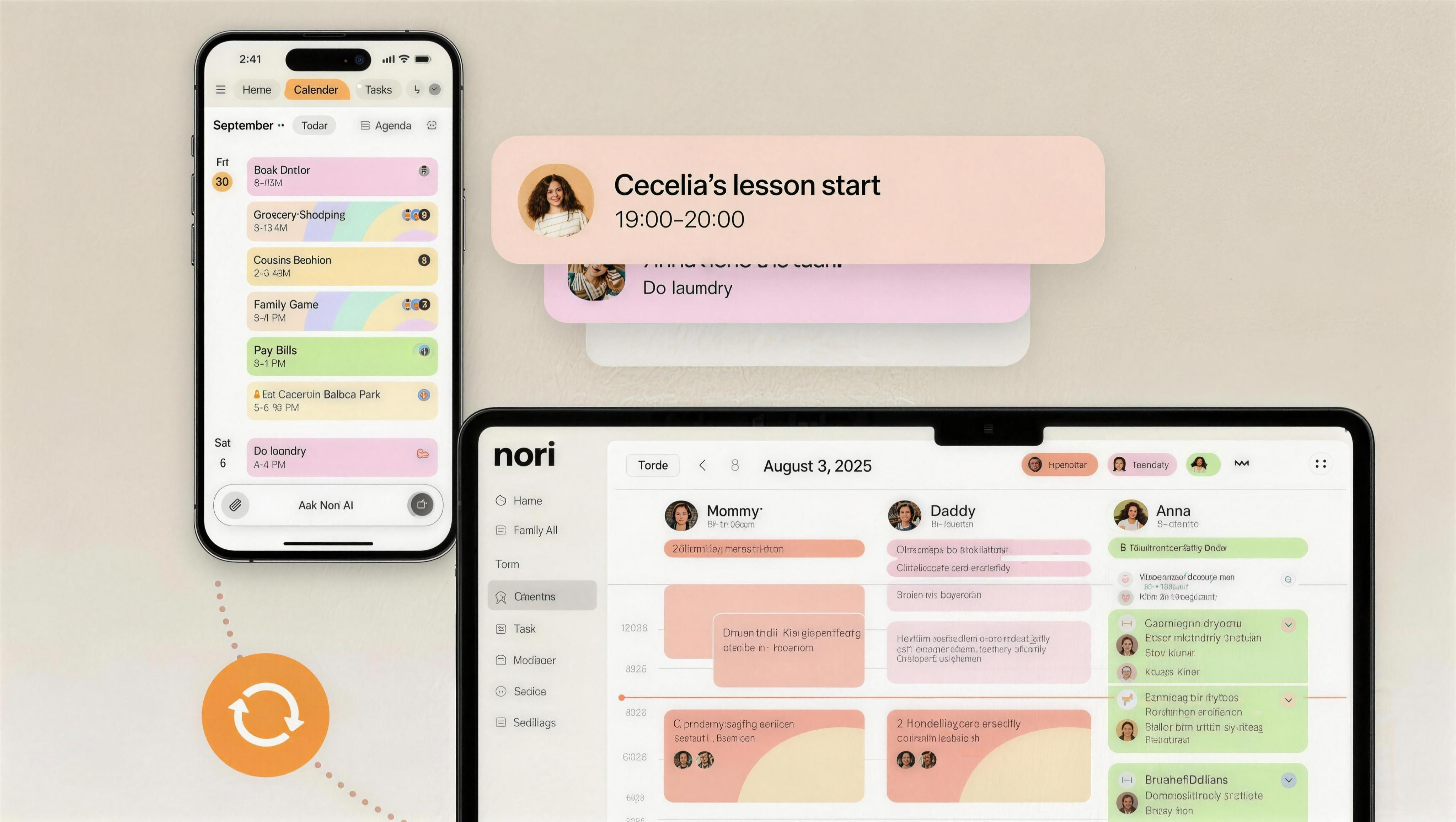
Flight confirmations, event invites, and appointment reminders arrive in email—but they don't automatically appear on your calendar. Forwarding email to calendar manually is tedious. Several tools now parse emails and add events automatically: Sense and Carly AI focus on email-to-calendar; Smart Calendars AI and EcmySoft offer similar workflows. Here's how to set it up—and how a family calendar like Nori fits in.
Key Takeaways
- Forward-to-add (e.g., add@heynori.com): Forward an email; the service parses it and creates a calendar event
- Gmail add-ons and Zapier can automate email → calendar for specific triggers
- AI parsing extracts date, time, location, and attendees from unstructured emails
- Family use: Choose a tool that supports shared family calendars
Why Forward Email to Calendar?
| Scenario | Without automation | With email-to-calendar |
|---|
UseCarly and similar tools show the demand: busy families want events from email to land on their calendar without manual work.
The manual entry problem: Most people receive 10–20 event-related emails per month—confirmations, reminders, schedules. Typing each one takes 2–3 minutes. That's 40–60 minutes per month of data entry. And when you're busy, you delay. Delayed entry means forgotten events. Email-to-calendar removes the delay: forward the moment it arrives, and the event is captured.
Family visibility: When you forward to a family calendar like Nori, the event appears for everyone. No need to tell your partner separately. Both parents see the flight, the appointment, the school event. One forward, shared visibility.
Methods to Forward Email to Calendar
1. Dedicated Email-to-Calendar Services
How it works: You get a unique email address (e.g., add@heynori.com). Forward any email to that address. The service parses it and creates a calendar event.
Examples:
- Nori: Forward to add@heynori.com; events go to your Nori family calendar
- Sense: Email-to-calendar as a core feature
- Carly AI: AI parses emails and adds to calendar
Pros: Simple—forward and done. Cons: Depends on parsing accuracy; some services are paid.
2. Gmail Add-ons & Extensions
Gmail add-ons (e.g., Smart Calendars AI, EcmySoft) can detect event-like emails and offer a one-click "Add to calendar." Some work inside Gmail; others require forwarding to a special address.
Pros: Stays in Gmail. Cons: Gmail/Google Workspace only; setup varies.
3. Zapier / Make (Integrations)
Zapier or Make can connect Gmail to Google Calendar (or other calendars). Trigger: new email matching filters. Action: create calendar event. Requires mapping fields (subject, body) to event fields.
Pros: Flexible; works with many apps. Cons: Setup complexity; parsing unstructured email is harder.
4. Native Gmail + Google Calendar
Gmail detects event details in some emails and shows "Add to Calendar." Limited to well-formatted emails (e.g., flight confirmations with structured data). No forwarding needed—just click.
Pros: Free; built-in. Cons: Inconsistent; doesn't work for all email types.
Setting Up Nori Email-to-Calendar
Nori supports forwarding email to your family calendar:
- Get your add address:
add@heynori.com(or your Nori-assigned address) - Forward any email: Flight confirmations, appointment reminders, school event emails
- Nori parses date, time, location, and title
- Event appears on your Nori family calendar—shared with family members
Works with Gmail, Outlook, Apple Mail, and other email clients. No add-on required—just forward.
Pro tip: Add the add address to your contacts (e.g., "Nori Calendar"). When you forward, autocomplete makes it fast. No typing the address each time.
Mobile forwarding: On your phone, forward from the email app. Same process—select the email, tap forward, choose Nori's add address. Events land on your calendar within seconds.
Batch forwarding: Have 5 emails from the coach? Forward each one. Each gets parsed separately. You can review and confirm in a batch. No need to do them one at a time with long waits.
What Gets Parsed?
Most email-to-calendar tools extract:
- Date & time (including time zones when available)
- Location (address, venue name)
- Title (from subject or body)
- Attendees (when present in the email)
Plain-text emails, PDFs, and HTML can be parsed—accuracy varies by tool. Flight confirmations and appointment reminders typically parse well.
Family Calendar Considerations
If you use a shared family calendar, choose a tool that adds events to that calendar—not just your personal one. Nori adds forwarded events to the family calendar so everyone sees them. Some B2B tools (e.g., Sense) focus on individual calendars; family tools like Nori prioritize shared visibility.
Types of Emails That Parse Well
Flight confirmations → Airlines send structured data. Date, time, flight number, gate. Most email-to-calendar tools extract these reliably.
Appointment reminders → Doctor, dentist, vet. Usually have date, time, location. Parse well.
School and sports emails → Coaches and schools send schedules. Forward the email; the tool extracts events. Recurring patterns (e.g., "every Tuesday 4pm") may be detected.
Event invites → Plain-text invites with date and time. Parsing varies; review before confirming.
Hotel and rental confirmations → Check-in/check-out dates. Often parse well.
Less reliable → Emails with unusual formats, multiple events in one message, or heavy HTML. Review extracted events before confirming.
Nori vs. Sense vs. Carly: Quick Comparison
| Feature | Nori | Sense | Carly |
|---|---|---|---|
| Family calendar | Yes | Yes | Yes |
| Voice input | Yes | Yes | Yes |
| Photo input | Yes | Yes | Yes |
| Email-to-calendar | Yes | Yes | Yes |
| Meal planning | Yes | Yes | Yes |
| Pricing | Core free; AI pay-as-you-go | ~$5/month | Varies |
When to choose Nori: You want email, voice, and photo in one app. Family calendar, tasks, and meals. One hub for everything.
When to choose Sense: You only need email-to-calendar. Simpler, focused. Affordable.
When to choose Carly: You want AI parsing but don't need the full family hub. Compare pricing and features.
Real-World Workflow: Email to Calendar in Action
Morning: You check email. A flight confirmation, a dentist reminder, and a school event notice. Forward each to add@heynori.com. By the time you finish coffee, all three are on your family calendar. Your partner sees them.
At work: Coach sends the updated practice schedule. Forward the email. Recurring events are detected. You don't need to leave your desk to type anything.
Before a trip: You've booked flights, hotels, and activities. Confirmations arrive over several days. Forward each as it arrives. Your trip calendar builds automatically. No manual entry.
School year: Schools send newsletters, event notices, and early dismissal reminders. Forward the relevant ones. Your family calendar stays current without you having to remember to add each one.
Getting Started: Email-to-Calendar in 3 Steps
- Sign up for Nori, Sense, or Carly → Create an account. Get your add address (e.g., add@heynori.com).
- Add the address to contacts → Name it "Calendar" or "Nori." When you forward, autocomplete makes it fast.
- Forward your first email → A flight confirmation, appointment reminder, or school event. Review the extracted event. Confirm. Done.
Pro tip: Forward the moment the email arrives. Don't "add later." The moment you see it is the moment to capture. One forward, event on the calendar. No delayed entry. No forgotten events.
When Email-to-Calendar Fails
Unusual format → Some emails have complex HTML or multiple events. Parsing may be incomplete. Review and edit before confirming. Add missing events manually if needed.
Wrong date extracted → AI can misread "March 15" vs. "May 13." Always verify. Edit the event before confirming. Critical events deserve a double-check.
Recurring events →"Every Tuesday 4pm" may or may not be detected. Check the extracted event. Add recurrence manually if the tool didn't catch it.
No event in the email → Some emails are reminders without a clear event. The tool may not extract anything. Add manually or forward a different email that has the details.
Comparison: Email-to-Calendar Tools
| Tool | Forward-to-add | Family calendar | Voice/Photo | Meal planning |
|---|---|---|---|---|
| Nori | Yes | Yes | Yes | Yes |
| Sense | Yes | Yes | Yes | Yes |
| Carly | Yes | Yes | Yes | Yes |
| Gmail native | Click to add | Limited | Yes | Yes |
| Zapier | Custom | Depends | Yes | Yes |
Nori is the only option that adds email + voice + photo to a family calendar with meal planning. Sense and Carly are email-focused. Choose based on whether you want a full family hub or email-only automation.
Conclusion
Forwarding email to calendar automatically saves time and reduces missed events. Use a dedicated service (Nori, Sense, Carly) for the simplest flow—forward and done. For Gmail power users, add-ons or Zapier offer more control. Try Nori free.
FAQ: Forward Email to Calendar
Does this work with Outlook and Apple Mail?
Yes. Forward from any email client. Nori, Sense, and Carly accept forwards from Gmail, Outlook, Apple Mail, and others. No add-on required—just forward to the service's add address.
What if the AI extracts the wrong date?
Always review. The service will suggest an event; you can edit date, time, and title before confirming. AI is a starting point; verification is essential for critical events.
Can I forward multiple emails at once?
Yes. Forward each email; each gets parsed separately. Some services support batching; check the app's documentation.
Is my email data secure?
Reputable services encrypt data and don't store email content long-term. They parse, extract events, and add to your calendar. Read the privacy policy before forwarding sensitive information.
FAQ Additions: Email to Calendar
Can I forward from my work email?
Yes. Forward from any email client—Gmail, Outlook, Apple Mail, work email. The service parses the email and creates an event. No add-on required. Just forward to the add address (e.g., add@heynori.com). Works with any email provider.
What if I forward the wrong email?
The service will try to parse it. If there's no event-like content, it may not create anything. If it creates an incorrect event, you can delete it before confirming. Or delete it from your calendar after. No harm done. Just review before confirming.
Does this work with calendar invites?
Yes. Calendar invites often have structured data. Forward the invite; the tool extracts date, time, location, attendees. Some tools (Nori, Sense) parse these well. Review and confirm. The event lands on your calendar. For more on family calendars, see best family calendar app.
What types of emails parse best?
Flight confirmations, appointment reminders, and school/sports schedules typically parse well. They have structured data—date, time, location. Plain-text invites and less common formats may need manual review. Always verify extracted events before confirming. AI is a starting point.
Related Articles
- Best Family Calendar App 2026
- Best Photo to Calendar App 2026
- How to Organize Family Schedule (Without Losing Your Mind)
- Best Family Organizer App 2026
Written by the Nori Team. Nori has scheduled 1M+ events for 20,000+ families.